The LNRS Viewer allows you to explore the spatial priorities and opportunities identified in the Devon Local Nature Recovery Strategy (see Where to focus action on the habitats and species pages).
PLEASE watch the video or read the instructions below before using the Viewer, even if you’ve used one before. The instructions include critical information on how to open layers and how to use the ‘Near Me’ function to open the layers in your area of interest. Please be patient as the Viewer can sometimes be slow to load larger layers. The Viewer will be moved to a new IT server in early 2026 and this will speed things up.
The maps shown on the Viewer can never be perfect and are for guidance only. This is for many reasons including:
Some habitats aren’t well mapped. For example, there will be species-rich grasslands that are not on the LNRS map and land that is mapped as species-rich grassland but is not. The best available data has been used but it is far from perfect. See Mapping Methodology below for who to contact to update habitat layers.
Land use, land management, designations and species distributions across Devon will change. The LNRS mapping is a snapshot in time. None of the statutory layers (Local Habitat Map) can be updated until the first formal review, which will be announced by the Secretary of State.
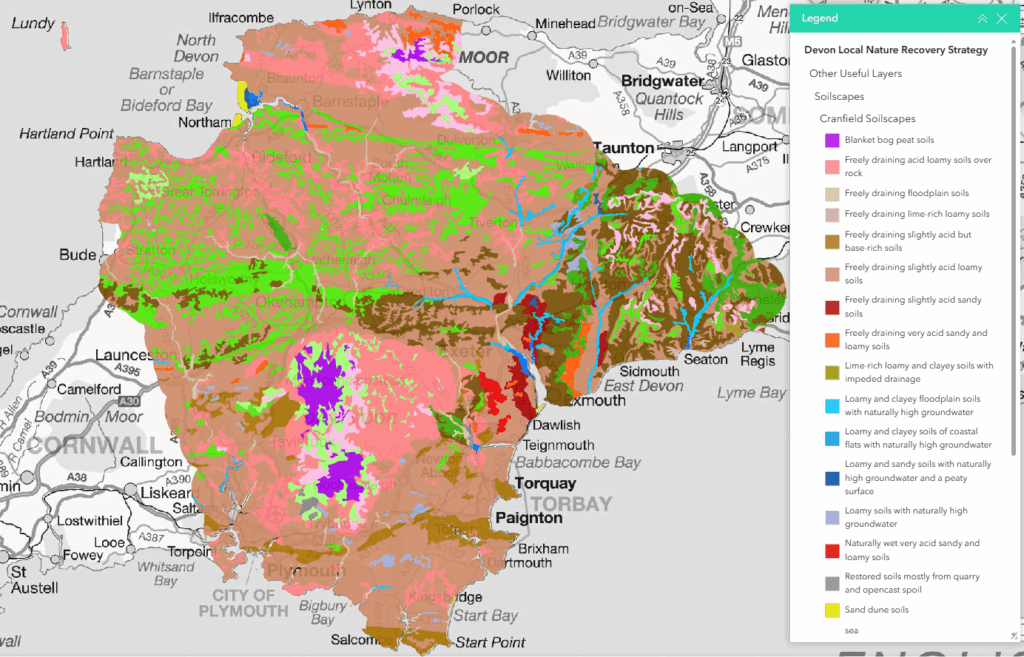
Soilscapes have been used to help identify areas where habitats could be created. However soils mapping can never be perfect.
It is not possible or appropriate for the LNRS to be prescriptive regarding land use decisions,so groundtruthing and expert ecological advice are always needed. For example, on acidic wet soils, appropriate habitats could include wet woodland, Purple Moor-grass and rush pasture, wet heath or mire. On free-draining brown earths, options could include arable, woodland, species-rich grassland, wood pasture or orchards. The habitat and species layers can guide decisions. However, a decision on the most appropriate land use must be based on detailed knowledge of soils, existing habitats and species (both on site and in the area) as well as practicalities relating to land drainage, infrastructure for livestock, long-term funding and management.
However, the habitat pages of the LNRS do provide further guidance. For example, the woody habitat pages include a list of High Opportunity Areas and Species Opportunity Areas where advice must be obtained before any woody habitats are expanded.
Positioned on the left side of the viewer, the Layers function (or menu) allows you to switch on (and switch off) map layers. If you cannot see it, use the ‘ > ‘ symbol in the white box on the left side of the screen to expand it.
Click on the ‘ > ‘ icon next to Local Nature Recovery Strategy to see the seven main layer groups in the menu (as explained in What’s on the Viewer: Contents below). The > icon sits next to the heading for a group of layers (so is not a layer you can view). Tick the box next to the heading (so that it’s green) and then tick the box next to the layers that you want to open.
IMPORTANT: To view a specific layer on the map you must tick (enable) the layer itself and ALL parent group headings above it. For example, for SSSIs to open on the map the following green ticks must be switched on: Devon Local Nature Recovery Strategy > Designated sites and statutory irreplaceable habitats > Statutory designations > Sites of special scientific interest.
✅ Green tick = switched on
⬜ Empty box = switched off
You can see which layers have opened on the viewer by looking at the legend (on the top-right of the screen).
You can choose to view several layers at a time. Layers higher up the list will appear over the top of layers lower down the list. You may have to switch off some higher layers to see some lower layers. Layers are not shown in priority order. Layers may also take time to load, particularly if they are large (data-rich) or if your broadband speed is low.
WARNING: Please be aware that the County Wildlife Sites (CWS) polygon layers do not have pop-up boxes. To view pop-up box information about County Wildlife Sites you must zoom in until the polygon turns into a point (ensure that both layers under County Wildlife Sites (polygons and points) are ticked on). This is due to Devon Biodiversity Record Centre (DBRC) licencing rules.
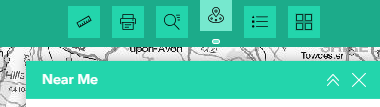
The Near Me tool allows you to find and explore layers within a specified distance of a selected point or within a polygon that you have drawn on the map.
Open the Near Me tool by clicking the Near Me icon in the top-right toolbar.
Select drawing tool
Option A
Choose Point.
Choose searchable distance.
Choose a location by clicking anywhere on the map or drag and drop your point onto the map. This will search for features or data layers within the set distance from that point.
Option B
Choose Polygon.
Use the polygon tool to draw a shape on the map.
Double click on the last node to draw your shape.
View results
A list of high opportunity areas within the search area will appear in the right-hand panel.
Click on any item to see more details or zoom to its location.
Once you’ve opened a layer, click anywhere on that layer to see more information.
A pop-up will appear showing the data source, a description of the layer features, key recommended actions for that location and important notes about environmental sensitivities.
Click on a link within the pop-up and it will take you to the relevant webpage on the LNRS website.
Near me
Click on the Near Me icon along the top righthand corner. Please see the above ‘How to use the Near Me function’ drop-down.
Legend
Click on the Legend icon along the top righthand corner of the viewer to understand what the colours and symbols mean for each layer.
This is a good way to check whether you’ve correctly switched on the right layers.
Search
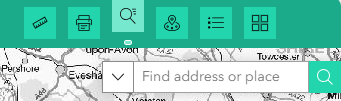
To quickly find a place, use the Search tool along the top righthand corner of the viewer.
Type in a place name, postcode or address and the map will zoom to that spot.
You can also filter your search with one of the set options, such as Devon Wildlife Trust Nature Reserves.
Basemap gallery
If you’d like to change the background map, use the Basemap Gallery found in the top righthand corner of the viewer.
Zoom
Use your mouse scroll wheel or the zoom buttons found on the top left corner of the map section of the viewer (+/-) to zoom in and out. Click and drag to move around the map.
Home
Click on the Home icon found on the top left corner of the map section of the viewer, to reset the map to its full extent.
Measure
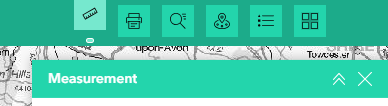
The Measurement tool lets you measure distances or areas on the map.
Click the ruler icon found along the top righthand corner of the viewer, choose whether you want to measure a line or an area, then click on the map to start measuring.
Double-click to finish and see the result.
Click on ‘clear measurement’ to remove your latest result.
Print
If you’d like to save or share a map view, use the Print tool found along the top righthand corner of the viewer.
Click the printer icon, adjust the settings if you wish, and then click ‘Print’.
You can download or print a PDF or image of your current map view.
Add a project to the delivery map
We’d love to hear how you’re helping nature thrive. Whether you’re planting trees, restoring habitats, reducing waste or supporting local wildlife, please add your contribution to the LNRS Viewer and inspire others to take action.
To add what you’re doing to the Viewer please fill in the short Delivery map form.
All submissions will be reviewed before they appear on the viewer. This ensures that every entry is appropriate and meaningful. As a result, there may be a short delay before your submission is visible.
These layers show all statutory and non-statutory wildlife sites as well as statutory irreplaceable habitats.
It’s a statutory requirement to include this layer in the LNRS’s Local Habitat Map. The Environment Act refers to this layer as ‘Areas of Particular Importance for Biodiversity’.
WARNING: Please be aware that the County Wildlife Sites (CWS) polygon layers do not have pop-up boxes. To view pop-up box information about County Wildlife Sites you must zoom in until the polygon turns into a point (ensure that both layers under County Wildlife Sites (polygons and points) are ticked on). This is due to Devon Biodiversity Record Centre (DBRC) licencing rules.
See the full list of layers in the drop-down below.
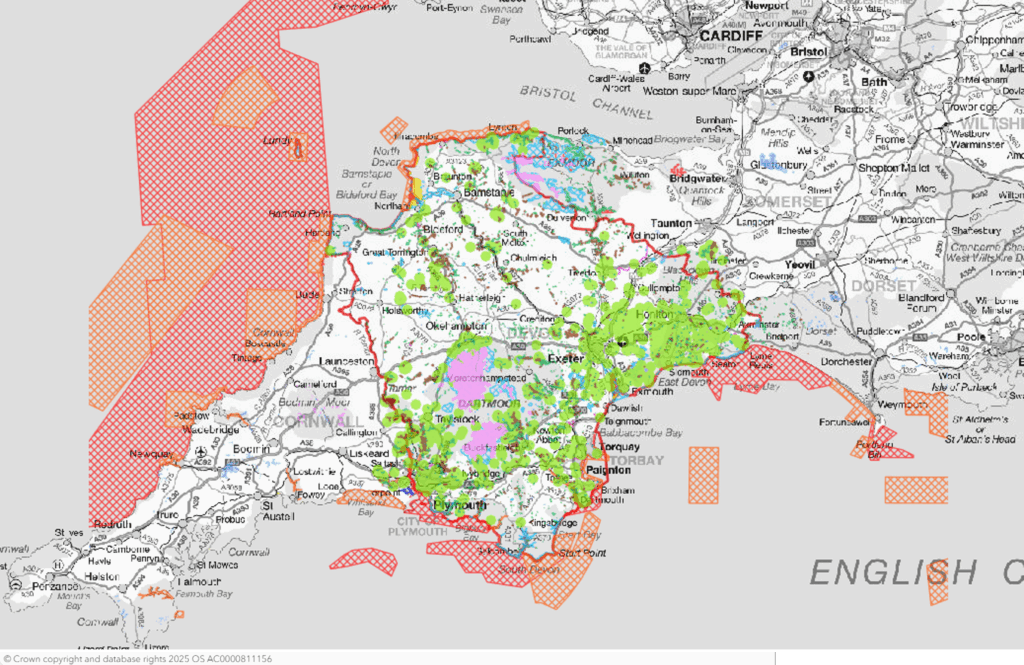
The map below is a clip from the viewer showing all statutory and non-statutory site layers opened.
These are areas where actions to manage, restore and create habitats are most needed.
It’s a statutory requirement to include this layer in the Local Habitat Map. Statutory guidance and information relating to Biodiversity Net Gain refers to this as the ‘mapped measures’ layer.
WARNING: Please be aware that the County Wildlife Sites (CWS) polygon layers do not have pop-up boxes. To view pop-up box information about County Wildlife Sites you must zoom in until the polygon turns into a point (ensure that both layers under County Wildlife Sites (polygons and points) are ticked on). This is due to Devon Biodiversity Record Centre (DBRC) licencing rules.
See the full list of layers in the drop-down below.
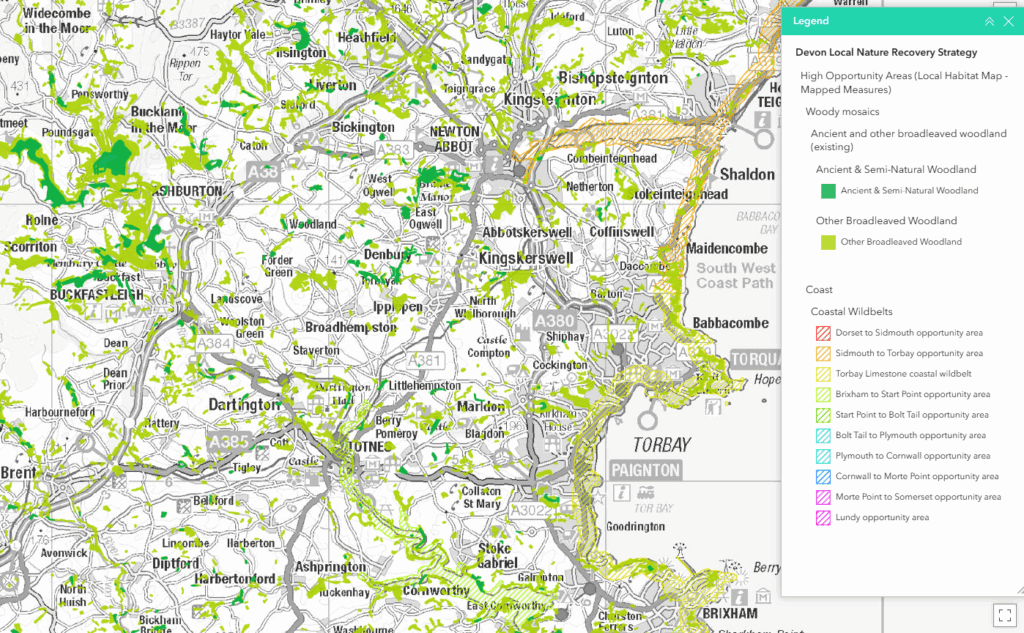
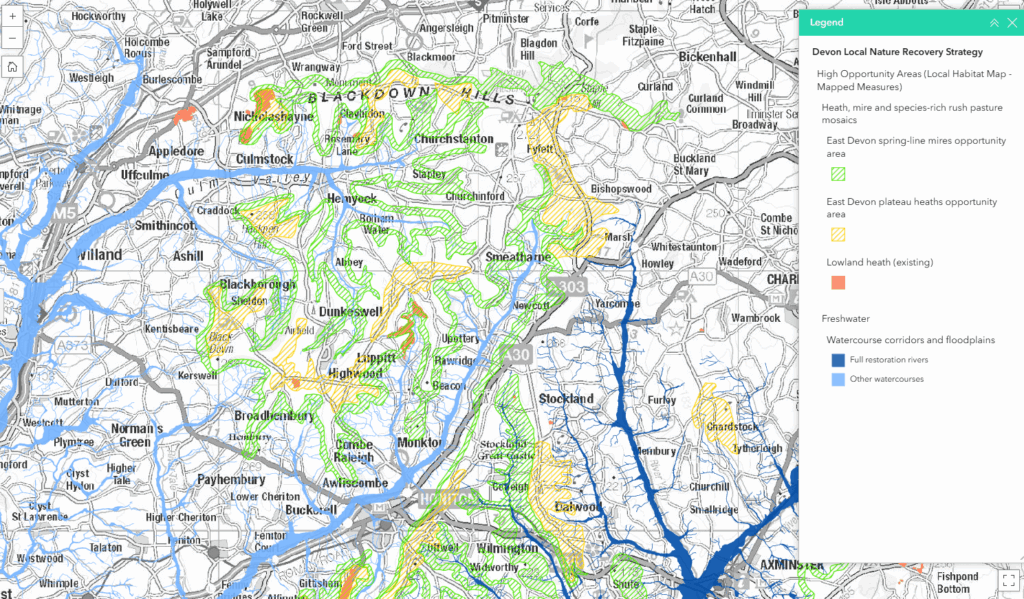
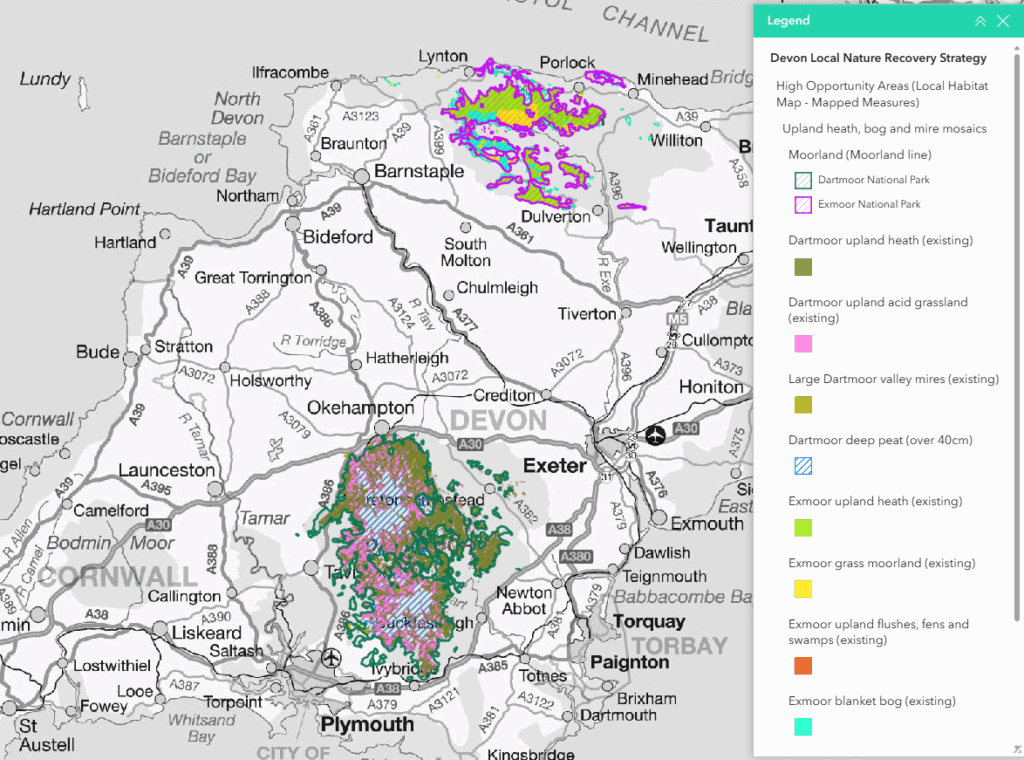
The maps below are clips from the viewer showing examples of High Opportunity Area layers.
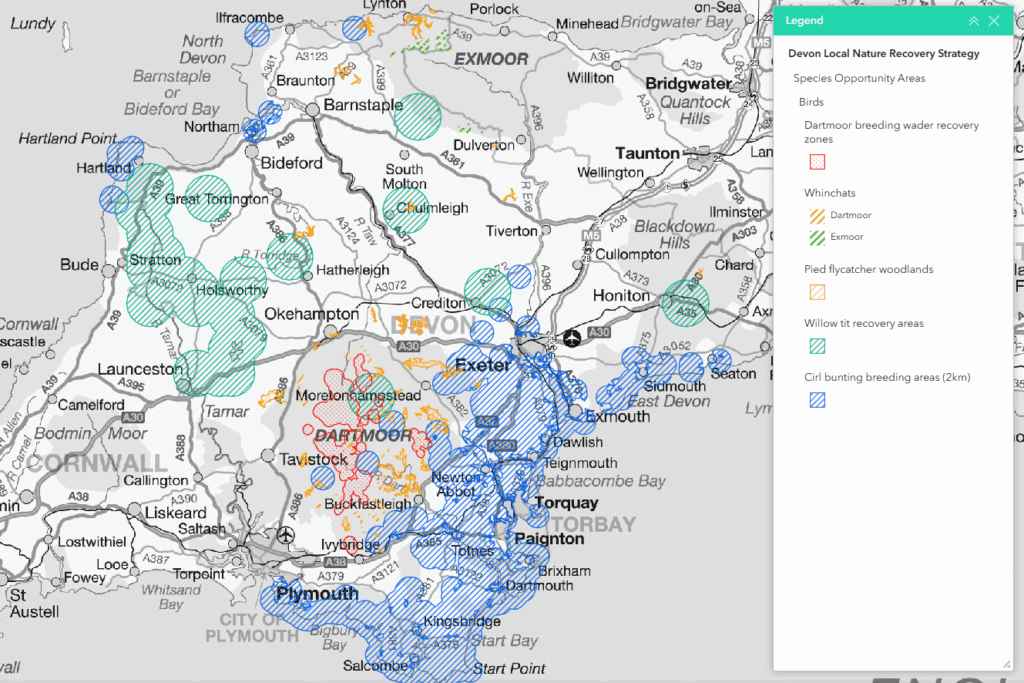
These layers show areas where landscape-scale action is required for the more mobile Devon Special Species (bats, birds, butterflies). There are also a few more focused areas mapped, such as for the Teign Valley spiders and key dragonfly sites.
Because these layers are generally large landscapes, they’re not included in the statutory Local Habitat Map, which requires focused mapping. However, the actions relating to species are part of the statutory LNRS, see Species.
See the full list of layers in the drop-down below.
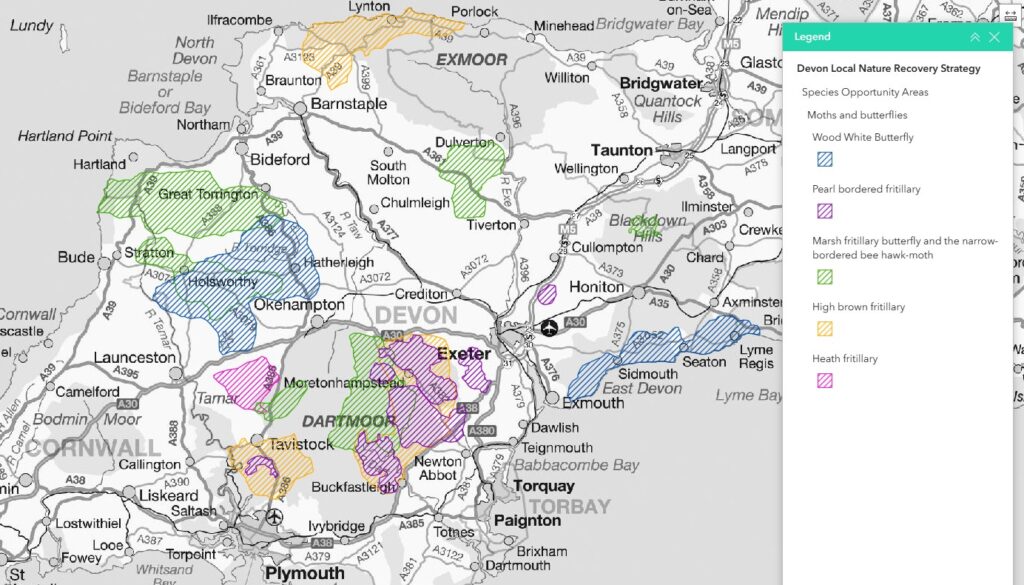
The maps below are clips from the viewer showing examples of Species Opportunity Area layers.
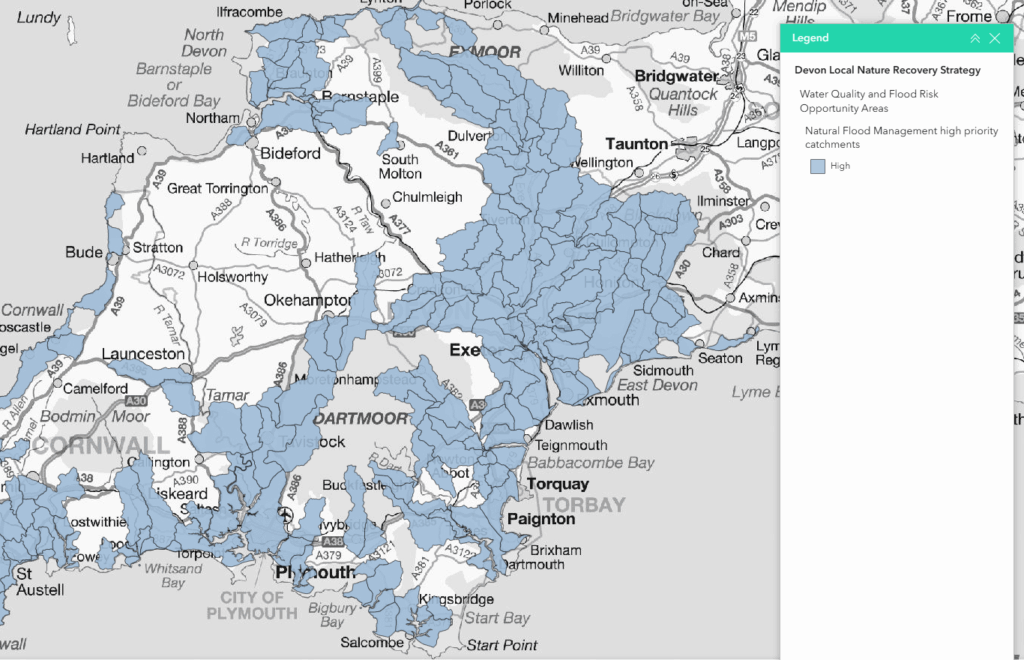
These layers have been provided through discussion with the Environment Agency and South West Water to show where wildlife habitats are most needed to help meet priorities relating to water quality and flood risk. See the Water quality and flood risk page.
Community access to nature opportunity areas:
These layers are simple 500m zones around all community centres and non-private schools. They show where creating and managing wildlife-rich accessible green space could be most beneficial for communities. See the Connecting people and nature page.
These layers are not part of the statutory LNRS (part of the local habitats map) and are included for guidance. However, all actions are part of the the statutory LNRS.
See the full list of layers in the drop-down below.
The map below is a clip from the viewer showing natural flood management high priority catchments.
Wherever you are in Devon there are actions you can take to help restore wildlife. See the most relevant habitat or species pages on this website.
Other Useful Layers
These are additional layers that provide important context and help guide broader nature recovery actions. They include parish boundaries, soilscapes, agricultural land classification, common land, protected landscapes, landscape character and more.
Devon LNRS boundary
Defined by Defra.
See the full list of layers drop-down below.
The map below is a clip from the viewer showing Soilscapes.
Mapping methodology, % coverage and downloading layers
A Mapping Methodology paper sets out how each layer has been mapped and how to download the GIS layers. The paper also includes links to national organisations so that you can share updates/issues relating to national data sets. For example, contacting Natural England to add an update to the National Priority Habitat Inventory layers.
Local Habitat Map – % of Devon covered
NE and Defra advised that the High Opportunity Areas, together with the area of designated wildlife sites and irreplaceable habitats, should not cover much more than 50% of each LNRS area. Together these layers form the statutory Local Habitat Map.
Opportunity areas for species and wider benefits were initially included as High Opportunity Areas as there was no initial limit on the area mapped in the guidance. However when NE/Defra introduced the 50% rule for mapping (to show prioritisation) these were taken out of the statutory Local Habitat Map. They are included to help guide actions.
The area covered by the High Opportunity Areas, designated sites and irreplaceable habitats (Local Habitat Map) is 53.6% of Devon.